

Adding a vault connection
Important information
- For instructions, see Managing server certificates.
To open the dialog for a new vault connection, select Add in the Settings main window.
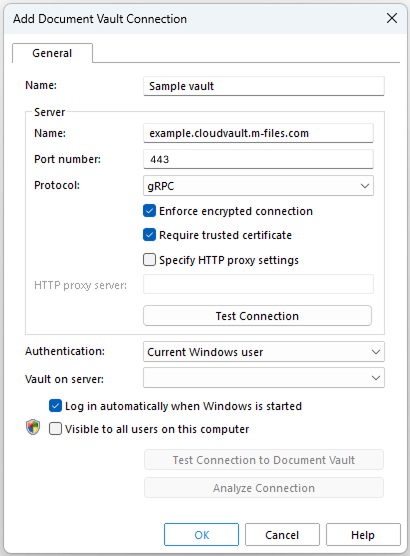
To create the connection, enter the necessary information to the dialog.
Name
The name of the connection can be anything, but it is a good idea to make it descriptive. The name will be shown on the M drive as a directory that contains the contents of the vault.
Server/Name
Enter the network name or IP address of the server on which has been installed and that contains the document vault.
Server / Port number
Specify the port to connect to on the server. The default gRPC port for is 443.
Server/Protocol
Define the protocol to be used for the network connection. Available protocols:
Enforce encrypted connection
Select this option to secure the communication between and with RPC encryption.
RPC encryption does not require Internet Information Services or any other additional components and is often the simplest way to achieve encryption of network communication between the client software and in the organization's internal network.
The option is available for the TCP/IP and gRPC protocol. If the protocol is HTTPS, the connection is always encrypted at the HTTPS protocol level. For connections from outside the organization's internal network, HTTPS or VPN should still be used, as RPC communication to the default TCP port, 2266, is often blocked by firewalls.
For more information on encrypted connections, refer to Protecting Data in Transit with Encryption in in the M-Files knowledge base.
Require trusted certificate
Specify HTTP proxy settings
You can specify an explicit forward proxy server for vault connections that use the gRPC or HTTPS protocol. This can be necessary if all traffic in your organization must be routed through a forward proxy server.
- If you selected gRPC as the protocol, enter the protocol, the address of the proxy server, and optionally the port number in this format: <protocol>://<server address>:<port number>. For example, http://exampleserver.com:80.
- If you selected HTTPS as the protocol, the protocol is HTTPS by default and you must only enter the address of the proxy server and optionally the port number in this format: <server address>:<port number>. For example, exampleserver.com:80.
Server / Test Connection
You can use this button to check that the connection works correctly.
Authentication
Specify the method the document vault is to use for authenticating the user. The authentication options are Current Windows user, Specific Windows user, and user.
The user is always authenticated on when logging in to the document vault, for example. is capable of checking the login accounts and passwords of all users. This is the authentication method. When Windows authentication is used, has the passwords checked by the domain server.
With Windows authentication, users log in to the database with same information that they use to log in to the local computer or the organization domain. If the organization uses a domain, using the domain logins and passwords is the quickest and easiest authentication method. This means that new passwords and logins are not needed, which makes this a rather user-friendly method.
Differences between the various authentication methods
|
Current Windows user |
You can use the Current Windows user method to log in with your current Windows credentials. |
|
Specific Windows user |
Selecting Specific Windows user means that you need to enter your Windows username, password, and domain information when you log in. This option allows you to log in with a different account than the one you used for accessing Windows. |
|
user |
The authentication method allows you to log in to only. If your organization does not have a Windows domain or you do not have access to it, you should select authentication for logging in. |
Vault on server
When there are several document vaults on the server, you can use this field to specify the document vault to connect to.
Log in automatically when Windows is started
You can establish the connection to the document vault whenever Windows is started. This is a useful option if you are going to use the document vault daily. For more information, refer to Login Accounts.
Visible to all users on this computer
In Windows, there can be several users who each have their own user-specific settings. It is possible to provide user-specific access to document vaults. If you want the document vault to be visible to all users on this computer that have been defined in the operating system, check this box.
Test Connection to Document Vault
After specifying the contents of the above fields, you can check whether you can successfully connect to the document vault. If the connection works, the server has responded to the connection test.
Analyze connection
When you have created the vault connection and open the Document Vault Connection Properties dialog by double-clicking the vault connection in the Settings dialog, you can use the Analyze Connection button to display further details about the connection. The analysis measures the round-trip time between the client and the server, as well as the download and upload speeds.