

Backing up the master database
Note:
The master database contains the server login accounts and scheduled backup jobs. For example in case of a hardware failure, the master database can be restored from the backup so that login information and server-specific settings like scheduled backup jobs are not lost.
Complete the following steps to back up the master database:
-
- Right-click a connection to server.
-
Click Back Up Master Database.
Result:The Back Up Master Database dialog is opened.
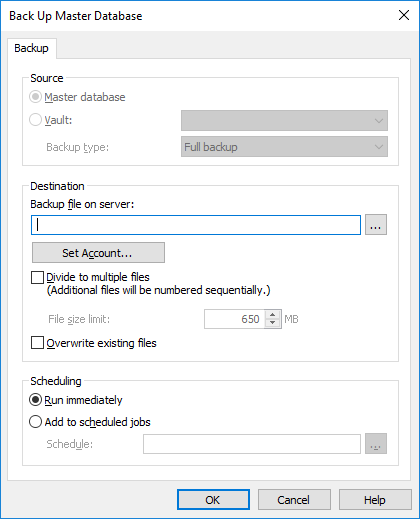
- In the Destination section, click to browse for the location where you would like to have the backup file placed.
- Optional:
- Optional:
Check the Divide to multiple files check box if you want to divide
the backup into multiple files of given size.
Use the File size limit spinner to specify the size of the split backup files.
- Optional: Check the Overwrite existing files check box if you want to overwrite any existing backup files in the location you have selected.
- Optional:
In the Scheduling section, select the Add to scheduled
jobs option if you want to specify a recurring schedule for backing up the
master database.
- Click OK to back up the master database.