

Migrating the vault database to
, vaults use as the default database engine.
, uses as the default vault database engine. For vaults that contain , we recommend you to use . If a vault uses but the number of objects in the vault greatly increases, it can be beneficial to have the vault use as the database engine instead. You can migrate your vault database from to in .
- Your vault uses as the database engine.
- You have a connection.
- See Important Tasks after Installation, Vault Creation, or Vault Migration for a checklist of tasks that we recommend to be done with vault migration.
- Take the vault offline.
- Move the file data to a different location.
- Specify the location of the vault file data.
- Bring the vault back online.
To migrate your vault database from to :
-
-
- Right-click a vault.
- Click .
- Click Yes to confirm that you want to take the document vault offline.
- Optional:
It is recommended that you back up the document vault at this point.
For instructions on backing up the document vault, see Backing up a vault.
-
In the left-side tree view, right-click the vault again and select from the context menu.
Result:The dialog is opened.
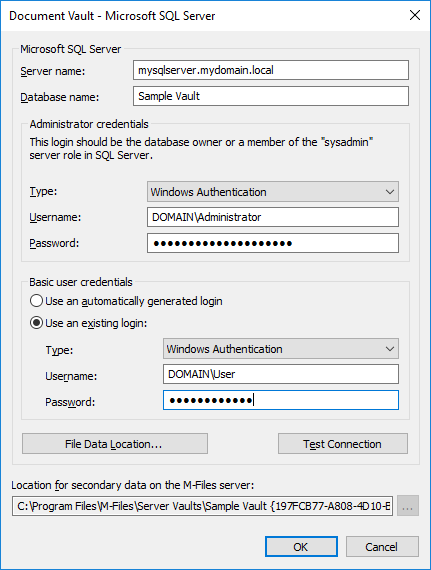
- In Server name, enter the connection address to your , such as mysqlserver.mydomain.local.
-
In Database name, enter the name of the database to be
created for the vault.
It is recommended to use the same name as the vault has on .
-
In the Administrator credentials and Basic user
credentials sections, fill in the credentials in one of the two
following ways:
Option Steps Enter the credentials for a login that has the sysadmin server role on your , giving the rights to make the necessary migration-related operations. - In the Administrator credentials section, enter the credentials for a login that has the sysadmin server role on your .
- In the Basic user credentials section, select the Use an automatically generated login option.
Manually create the database and login accounts (without the sysadmin server role) and use the non-sysadmin credentials for . - By using , create an empty database for the vault.
- Still in , create two login accounts without the sysadmin server role, for example User A and User B.
- Back in and the dialog, in the Administrator credentials section, enter the credentials for User A.
- In the Basic user credentials section, first select the Use an existing login option and then enter the credentials for User B.
The easiest way is to select the first option, and to let make all the necessary changes on your . In some cases, however, system administrators may need to withhold sysadmin credentials from . In these cases, the vault database and the login accounts need to be created manually (the second option). For detailed instructions, refer to the document How to Configure to Operate Without Sysadmin Role in MS SQL Server.
uses the basic user credentials for almost all vault operations, and the administrator credentials – in addition to creating the database and the login accounts – for some of the maintenance operations.
- Optional: Click Test Connection to test the connection to your .
-
Click OK.
Result:A warning dialog is opened to tell you that the operation cannot be undone.
- Click Yes to close the warning dialog and start the migration.
- After the migration is complete, in the left-side tree view, right-click the vault.
- Click .