

Using the Classic
This section tells about the user interface for the classic . Click on different parts of the screenshot below for a description of the areas in the user interface.
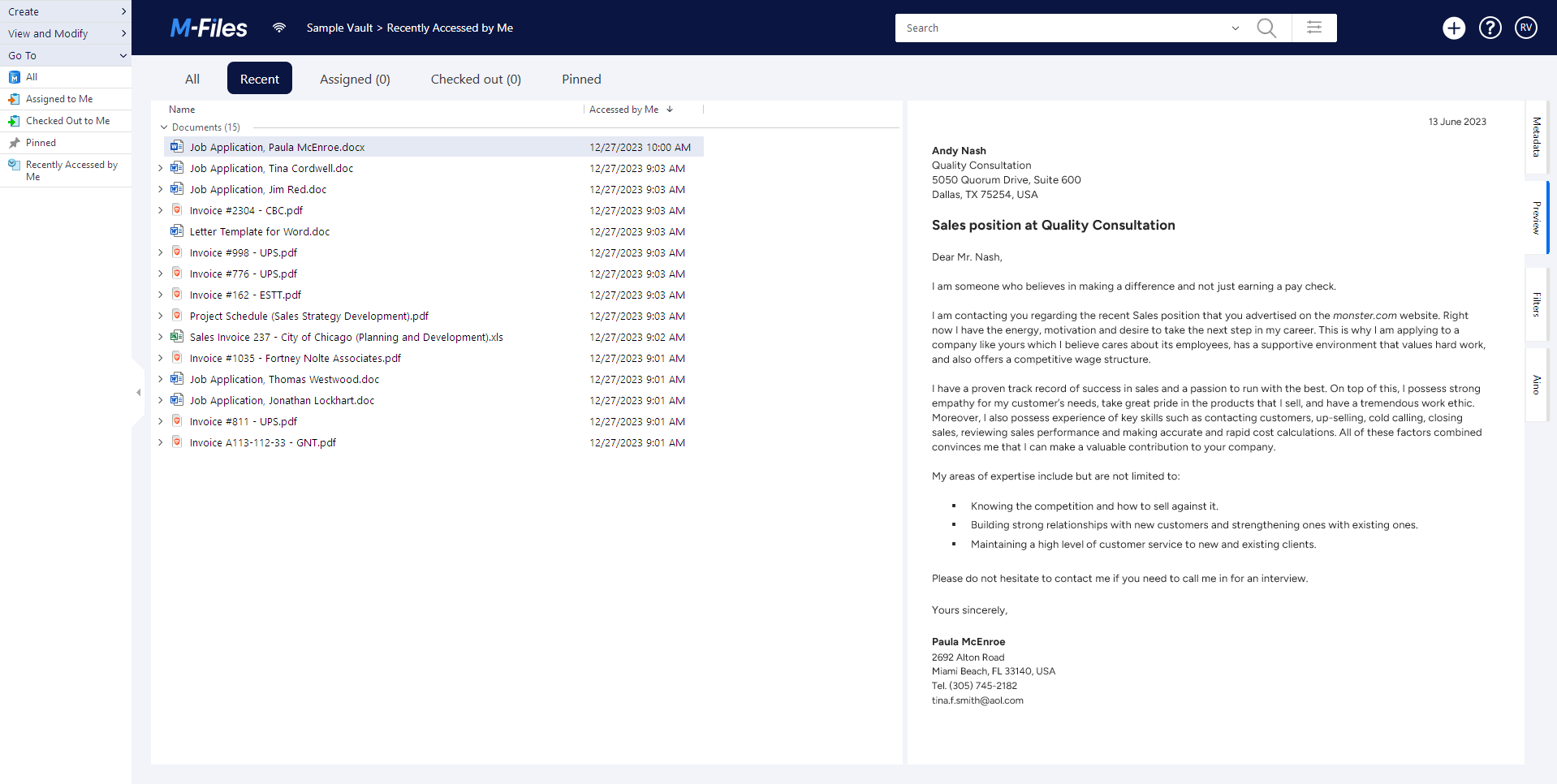
Top area
The top area of contains these items:
- logo
- Connection status
- Navigation path
- Search field and search options
- Object creation icon
- Link to
- User menu icon
logo
Click the logo to go to your home tab. To change which tab the logo link opens, see Setting Your Home Tab.
Connection status
The connection status icon ( ) shows the status of your connection to the vault. The connection is
measured with the round-trip time to the server that hosts the vault. Click the connection status icon
to open the Connection Status dialog. If your connection is slow or there is no
connection to the server, contact your system administrator. Click
Refresh to refresh the information of your connection status or
Analyze Connection to see details about your connection.
) shows the status of your connection to the vault. The connection is
measured with the round-trip time to the server that hosts the vault. Click the connection status icon
to open the Connection Status dialog. If your connection is slow or there is no
connection to the server, contact your system administrator. Click
Refresh to refresh the information of your connection status or
Analyze Connection to see details about your connection.
The navigation path shows you where you are. In practice, it contains the name of the current view and of all its parent views. The path can be, for example, .
Searching
Use the search bar to find your documents and other objects. For more information, see Searching.
Creating objects
Click Create ( ) to create an object. For more information, see Creating documents and Creating non-document objects.
is a great resource for new
users. Click the question mark icon ( ) to get started.
Listing area
The listing area usually contains views and objects. For more information, see Listing area.
Right pane
The contents of the Metadata, Preview, Filters, and Aino tabs are shown in the right pane. To hide the right pane, click the active tab. For example, Metadata or Preview. You can drag the left border of the metadata card and preview window to resize them.
Metadata card
To see and change the metadata of the selected object, use the metadata card. For more information, see Object metadata and Metadata card.
Preview
In the preview mode, you can browse and copy the content of the selected document. For more information, see Document preview.
Filters
When you search for an object or a document, you can use the advanced search features on the Filters tab. In the Filters tab, you can give more specific search criteria for your search. For more information, see Search Filters.
Aino
To summarize a selected document or to get responses of the document content, use . For more information, see Using.
Task area
In the , you can see shortcuts to different operations. For more information, see task_area.html. Click the handle on the right edge of the to hide it.