

Getting started with M-Files Partner Cloud
With the Partner Cloud, you can:
- Access to Service Overview from your personal account in the administrative subscription.
- Gain privileged access to customer vaults for administration
- Install unsigned vault applications
- Centralize management of multiple customer subscriptions
- Monitor customer subscriptions with visual status indicators
- Access your customer subscriptions without the need to create an extra account and use up a license.
Setting up Microsoft Entra ID
Before you begin, make sure you have Microsoft Entra ID configured for your organization.
-
Select the Service
Overview page from the subscription selector drop-down menu:
 Selecting the Service Overview pageWarning: Only service admins can open Service Overview. In Partner Cloud, subscription admins of the administrative subscription are Service admins.
Managing customer subscriptions
To add another customer to your Partner Cloud instance, make a Cloud Service request. After the request is processed, the subscriptions and vaults added appear in the Service Overview page. Service admins can then gain access to them through this page. On the Service Overview, you can view a list of all vaults added to your Partner Cloud under each subscription.
Monitoring vault status
The Service Overview includes status columns that provide visual indicators for subscription health and license details. If something shows in red, you can select the status icon and a pop-up will display more information. Then, you can quickly react to related issues and take corrective action.
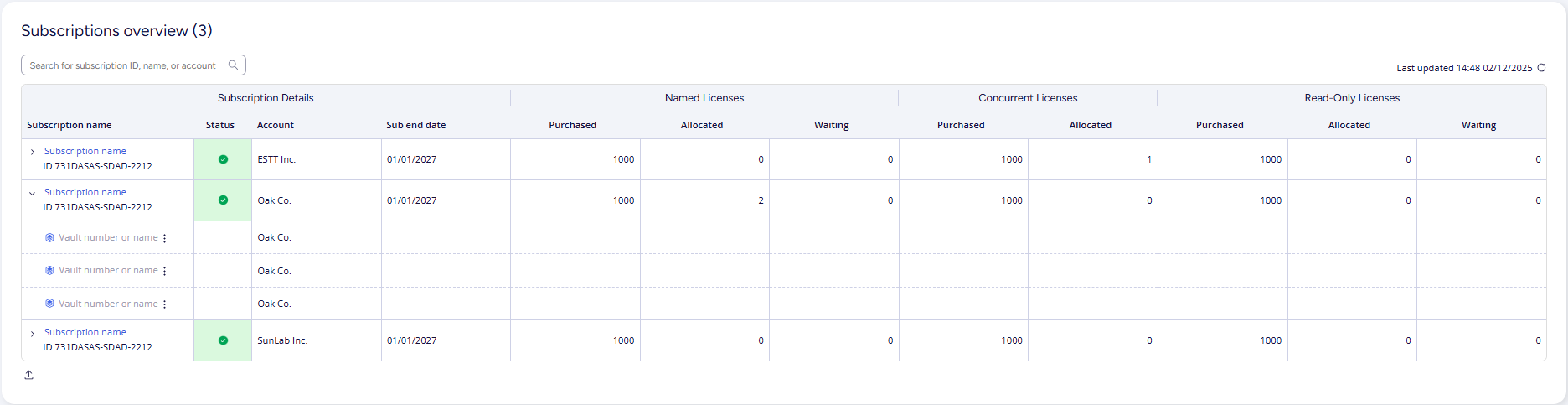 Service Overview page with subscription details and health status indicators
- What can I do if I cannot see any subscription in the Service Overview page? Contact your Partner Manager. They will do what is necessary to make sure your subscription is available in the Partner Cloud as soon as possible.
- How can I add more customers to Partner Cloud? Open a Cloud Service request containing the subscription and vault ID to which the customer must be added. Our team will handle it as swiftly as possible.